


Apr 14, 2025
5 out of 5 stars
A real Life Saver
Recovery Toolbox for Outlook helps to import OST to Outlook
Importing data from an OST file into Microsoft Outlook can be done in two ways: using the Recovery Toolbox for Outlook program or an online OST file to PST file conversion service.
In most of these cases the user is left with OST files that do not open in Outlook. To open OST files, you need to use external services and tools. To import OST files, you must:
Tested & Verified on Microsoft Outlook 2024, 2021, 2019, 2016 and Office 365 OST files with size up to 150Gb. Reviewed by MS MVP Victor Bobrov.
Security & Data Privacy: Absolute privacy.Recovery Toolbox for Outlook converts and recovers data completely offline. The program does not require an internet connection. No data is shared with third parties or other companies.
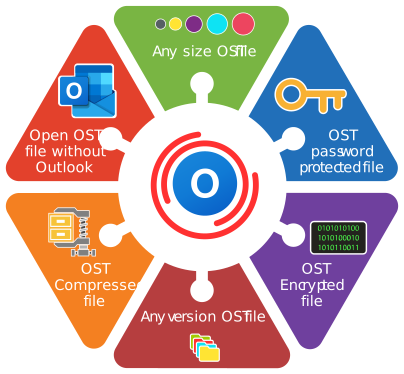
When is it necessary to import OST files in Outlook? In case of the following errors:
In cases like the ones mentioned above, Microsoft Outlook stops functioning normally and email access is blocked.
Requirements:
Notes:This product does not export contact groups
The extensions of recovered files: pst and ost. The Online Service and Recovery Toolbox for Outlook repairs files Microsoft Outlook 98 / 2000 / 2002 / 2003 / 2007 / 2010 / 2013 / 2016 / 2019 / 2021 / 2024 and Outlook for Microsoft 365.
OST (Offline Storage Table) is a file format used by Microsoft Outlook to store mailbox data when working offline. An OST file is created when Outlook uses the cached mode when exchanging data between it and the server. The OST file can be a lifesaver in case of a system failure, corruption, or accidental deletion. What if you want to open an Outlook OST file on another computer or use it with another email client? In this article, we will show you step-by-step instructions on importing OST files into Microsoft Outlook so that you can easily access your mailbox data.

For several reasons, you may need to import mail items (emails, contacts, appointments, reminders, and more) from an OST file into Microsoft Outlook. Here are some of them:
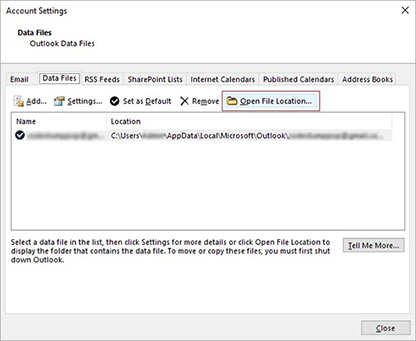
Before importing an OST file into Microsoft Outlook, locate it on your computer. This section will tell you how to do so.
You can also navigate to the location of the OST file using the following path C:\Users%username%AppData\Local\Microsoft\Outlook, where "%username%" is the username of the user account on your computer.

Why can't you directly import an OST file into Outlook?
The OST file allows you to work offline and access mailbox data even if you are not connected to an Exchange server or other IMAP mail server (Gmail, Yahoo, and so on). However, you cannot directly open the OST file in Microsoft Outlook. Here's why:
Therefore, you can access the data in the OST file using the methods described in the next section.
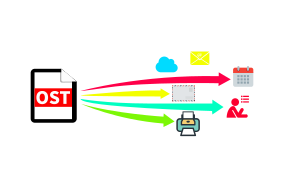
To import OST files into Outlook, first convert OST to PST format and then import the PST file into Outlook. You can convert OST to PST file using Outlook import/export wizard or third-party OST to PST conversion software such as Recovery Toolbox for Outlook.
Method 1: Convert OST to PST from Outlook
Below are the steps to convert the OST file to PST format in Microsoft Outlook using the import/export wizard:

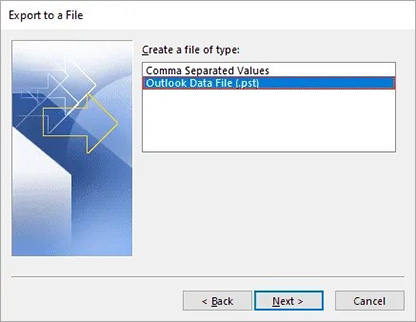


By following the steps below, you can convert the OST file to PST format and import the PST file into your email client for easy access to your mailbox data.
While using the import/export wizard to convert OST to PST is a relatively simple method, there are a few limitations to keep in mind:
Method 2: Archiving emails from OST to PST
The second way to open mailbox contents from Outlook is to archive the OST to PST file using Outlook's Autoarchive settings. This feature will help you free up space in your mailbox while ensuring that important emails are safely stored in an archived file.
Below are the steps to archive emails from OST to PST using the auto-archiving settings in Microsoft Outlook:

Note:If the OST file is corrupted, you cannot export or archive emails to PST format from Outlook. To recover a corrupt OST file, you must use Recovery Toolbox for Outlook to open and convert OST to PST files.
Method 3: Import OST to Outlook 2024, 2021, 2019, 2016, 2013, 2010, and Outlook for Microsoft 365
Recovery Toolbox for Outlook is a reliable and powerful tool for converting OST files to PST format. It has many advantages over other manual methods. It is a good option if you cannot open the OST file or want to upload it directly to Office 365 and the Live Exchange server. Recovery Toolbox for Outlook is compatible with Outlook and allows you to recover and open OST files without Outlook.
Here are the steps to convert OST to PST using Recovery Toolbox for Outlook and importing the PST into Outlook:

Here are a few advantages of Recovery Toolbox for Outlook over other methods:
Summary
This article covers various methods of importing OST files into Microsoft Outlook. You can use the import/export wizard or archive your email from OST to PST and then import the PST file into Outlook. However, if you no longer have access to the Exchange server or the OST file is corrupted or damaged, you will need a professional OST to PST converter to export and open email data in Outlook. Recovery Toolbox for Outlook can recover OST files and convert all your email data from OST to PST online while maintaining complete data integrity and safety.
Outlook's built-in wizard cannot select an .ost file as an import source. It primarily imports .pst files, while an OST file is a local cache tied to a specific account and Outlook profile. Therefore, an inaccessible OST file is usually first converted to a PST file with a specialized utility, after which the resulting PST file is opened or imported into Outlook. Microsoft also states that an OST file cannot simply be moved to another computer and attached as a PST file.
When a specialized utility is required to import data from an OST file:
1. The original account is no longer accessible
In these cases, Outlook cannot connect the old profile and perform a standard export of its contents to a PST file.
2. Exchange Server or another mail server is unavailable
If no server-side copy exists, the OST file may be the only available data source.
3. The mailbox was recreated on the server
A matching email address does not allow Outlook to attach an OST file created for the previous mailbox identity.

4. The original Outlook profile has been deleted or corrupted
For example:
Simply specifying the path to the old OST file usually does not restore its association with the new profile.
5. The operating system was reinstalled or replaced
6. The OST file was obtained from a backup
For example, the OST file was extracted from:
Such an OST file cannot be opened using standard methods in an arbitrary Outlook profile.

7. A migration between organizations is being performed
Outlook's built-in import cannot use an old OST file as a portable intermediate file.
8. The OST file contains data that is not on the server
This is one of the most important and common reasons for importing data from an OST file:
Recreating the OST file in this situation will destroy the only local copy of these items.
9. Access to additional mail resources has been lost
Such data may be extracted only with the appropriate authorization.

10. The OST file is corrupted
If the server mailbox is intact, Microsoft recommends recreating the OST file and synchronizing it again. Specialized recovery is necessary when the server-side copy is missing or incomplete.
11. The OST file was created by a different or older version of the environment
12. An independent archive or selective extraction is required
Recovery Toolbox for Outlook supports converting inaccessible, orphaned, and corrupted OST files to PST files while preserving folders, messages, attachments, contacts, calendars, tasks, and notes.

A specialized OST to PST converter is usually not required if:
In this case, it is better to create a new OST file and wait for synchronization to finish.
Important: Recovery Toolbox for Outlook cannot recover messages that were never downloaded from the server to the local OST file, completely overwritten areas of the file, or data encrypted with EFS/BitLocker without the corresponding key. Work with a copy of the OST file and keep the original unchanged.

excellent!!
Question:
An old OST file from my previous corporate mailbox is still on a Windows 11 Pro laptop running Outlook for Microsoft 365. After I left the company, the admin revoked the license, blocked the account, and deleted the original Outlook profile. The mailbox was later recreated with the same address, but the new profile rejects the old OST because the mailbox now has a different internal ID. I have written approval to retrieve the business email, contacts, and calendar. How to import OST file into Outlook is the first problem I need to solve; I also need to understand How to import OST to Outlook and How to add OST file to Outlook without the old account. Is there a reliable Outlook import OST file workflow when the standard wizard does not even list OST as an import source?
Answer:
Recovery Toolbox for Outlook converts a detached OST file into a PST file that can then be opened in Outlook.
This import is necessary because an OST file is tied to the original account, profile, and mailbox ID. Reusing the same email address does not restore that link. How to import OST file in Outlook in this case comes down to creating a portable PST instead of trying to mount the OST directly. The practical answer to How to import OST file to Outlook is to convert the local data first and attach the result afterward. In admin shorthand, both import OST Outlook and import OST file Outlook describe the same two-stage job: extract the local data, then mount the resulting PST.
The obvious fix is to ask the administrator to temporarily restore the original mailbox, license, MFA, profile, and access to any additional mail resources. Outlook can then finish syncing, and the user can run the built-in export to a PST file. This route will not work if the original account, profile, or previous mailbox identity no longer exists.
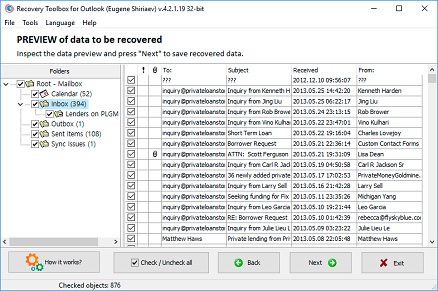
Practical workflow with Recovery Toolbox for Outlook: on a Windows PC, download and install the app; select the old OST file on the first screen; choose Conversion mode, or Recovery mode if the file is damaged; check the folders, messages, attachments, contacts, appointments, reminders, tasks, and notes you need; choose an output folder; select PST as the output format; start saving; then, in classic Microsoft Outlook, open Account Settings, go to the Data Files tab, and add the new PST. The recovered data will appear as a separate archive, and you can move authorized items into the new mailbox.
Question:
I have a Windows 10 workstation running Outlook 2019 that used to connect to an on-premises Exchange Server. After a hardware failure, the server was decommissioned, the Exchange database will not mount, and there is no usable mailbox backup. The only surviving source is an OST file pulled from the old virtual machine's VHD and user profile. I need an OST PST conversion, but Outlook will not open the file in a new profile. I also need to convert OST PST data locally. How to convert OST file to PST file when the original server and domain are gone, and How to export OST to PST without a live Exchange mailbox?
Answer:
Recovery Toolbox for Outlook extracts data from the backed-up OST file and saves it to a new PST file.
The import is necessary because the server copy is gone, and the OST may be the only remaining snapshot of messages, contacts, calendars, and other mailbox items. An OST PST conversion makes the content portable. To convert OST PST data, the app does not need to relink the file to the destroyed Exchange Server. The answer to How to convert OST file to PST file is to process the local OST directly; How to export OST to PST then becomes a matter of saving the recovered items to a new Outlook data file.
The obvious fix is to restore Exchange from a healthy backup, mount the database, and export the mailbox using the built-in tools. This is the preferred path when the server data is complete and accessible. However, an OST pulled from Windows Backup, Volume Shadow Copy, FSLogix, VHD/VHDX, an old SSD, or a recovered partition cannot simply be assigned to an arbitrary Outlook profile.
Practical workflow with Recovery Toolbox for Outlook: copy the OST from the backup to a healthy drive on a Windows PC; install the app and select the file; use Recovery mode if the structure is damaged, or Conversion mode otherwise; review the folder tree and check the items you need; choose a separate output folder and PST as the output format; start saving; when the job finishes, add the PST to classic Outlook from the Data Files tab. Keep the source OST untouched and work from a copy.
Question:
The old PC ran Windows 10 and Outlook 2016; the new one runs Windows 11 and Outlook 2024. Replacing the system drive also changed the domain, Windows SID, user name, and Office architecture, and the original email account has been closed. The OST is still on the old SSD, but dropping it into the new profile folder did nothing. How can I move OST file to new computer, import OST file to new Outlook, and pick the right OST file converter when the new Outlook setup has no link to the old profile?
Answer:
Recovery Toolbox for Outlook moves the contents of the old OST into a compatible, portable PST file.
An import is necessary because an OST cannot be moved between unrelated profiles with a simple file copy. To move OST file to new computer, transfer the data extracted from it, not the old profile binding. In this setup, import OST file to new Outlook happens after a PST has been created. An OST file converter is required when the original account can no longer be added and synced.
The most obvious fix is to add the same active Exchange or Microsoft 365 account to the new PC and let Outlook build a fresh OST from the server. This is the best option when the server still has all the data. It will not recover local-only items that never reached the server, and it does not help if the account was deleted, the user moved to another organization, the profile is corrupted, or the old environment is incompatible.
Practical workflow with Recovery Toolbox for Outlook: connect the old SSD to a Windows PC and make a copy of the OST first. Install the app; select the copied file; choose Conversion or Recovery mode; check the messages, folders, contacts, calendar, tasks, reminders, and notes you need; select a folder on the new drive and PST as the output format; run the job; then add the PST in Outlook 2024 from the Data Files tab. If by "new Outlook" you mean the separate new Outlook app, create the PST first and use the Microsoft-supported PST workflow available in your installed version. Recovery Toolbox for Outlook runs on Windows only.
Question:
I use Windows 11 and Outlook for Microsoft 365. The company moved from on-premises Exchange to a new Microsoft 365 tenant, then decommissioned the old server and deleted the previous tenant. Some mailboxes were only partially migrated, and all I have left is the old profile's local OST with email and calendar data. I need to import OST to Office 365 and import Outlook OST to Office 365 into the new corporate mailbox. Can I migrate OST to PST first and then upload the data to the new organization if Outlook will not accept the old OST directly?
Answer:
Recovery Toolbox for Outlook converts the old OST to PST for later import into Microsoft 365.
Import is needed because the old and new tenants, domains, or mailboxes are different objects, even if the user's address stayed the same. To import OST to Office 365 or import Outlook OST to Office 365, use an intermediate, portable PST. First migrate OST to PST, then import the PST contents into the authorized mailbox with Outlook or Microsoft 365 administration tools.
The obvious fix is to run a standard cross-organization migration while both tenants or the Exchange Server are still available. That makes it easier to preserve server-side properties and verify that the move is complete. If the source environment is already gone and the data exists only in an OST, a standard migration cannot pull it from the server.
Practical workflow with Recovery Toolbox for Outlook: install the app on Windows and select the old profile's OST; use Conversion or Recovery mode; check only the missing folders and items to avoid unnecessary duplicates; choose an output folder and PST as the output format; start saving; add the PST to classic Outlook through Data Files; after validation, import or copy the required folders from the PST into the new Microsoft 365 mailbox. For a corporate migration, coordinate the upload with the administrator and the organization's data-retention policies.
Question:
On a Windows 10 PC running Outlook 2021, a long stretch of offline work left unsent messages in Outbox, local drafts, contacts, tasks, notes, categories, and appointments. After a failure, the admin restored the mailbox from an older server backup, so those items are missing from the server. The IMAP profile also still contains This computer only folders and sync-conflict items. Before I rebuild the profile, the two key recovery topics are How to convert OST to PST Outlook and How to convert OST to PST file. Can I run an Outlook OST to PST convert job and extract calendar from OST without nuking the only local copy?
Answer:
Recovery Toolbox for Outlook saves unsynced items from the OST to a separate PST file on Windows.
Import is needed because rebuilding the OST will pull down the server state but will not restore local drafts, Outbox items, contacts, calendar entries, tasks, notes, flags, categories, or This computer only folders. Treat How to convert OST to PST Outlook as a local-data recovery job that must be completed before deleting the old profile. For How to convert OST to PST file and the Outlook OST to PST convert workflow, first clone the OST and inspect the folders that can be read. If you only need to extract calendar from OST, select the calendar folders and related items before saving.
The obvious fix is to reconnect to the original server and wait for a full sync, but only if the server mailbox truly contains every change. In this case, that is risky as the only step: syncing or rebuilding the profile can drop local data that no longer exists on the server.
Practical workflow with Recovery Toolbox for Outlook: close Outlook, back up the OST, and work from the copy; install the app; select the OST on the first screen; choose Conversion or Recovery mode; in the data tree, check Outbox, Drafts, Contacts, Calendar, Tasks, Notes, Sync Issues and the local folders you need; choose a new output directory and PST format; start saving; add the PST to Outlook through Data Files. Compare the new archive with the current mailbox first, then move only missing items to keep duplicate noise to a minimum.
Question:
On a Windows 10 PC running Outlook 2019, a power outage and disk crash occurred while email was being written. Outlook now hangs while loading the profile, and the OST has table and folder-structure errors. I recovered the file from the SSD, but it is partially corrupted. The Exchange mailbox has been deleted, so resync is impossible. Is there a microsoft OST to PST conversion tool, or do I need an OST to PST file converter, a dedicated convert OST to PST tool, or an Outlook OST to PST converter that can handle a damaged file?
Answer:
Recovery Toolbox for Outlook recovers readable items from the damaged OST and saves them to a PST file.
Import is necessary because, without a server copy, the damaged OST is the only source of data. A general-purpose microsoft OST to PST conversion tool cannot replace specialized extraction from a detached, corrupted file. Microsoft's normal path for a healthy server mailbox is to create a new OST and sync it. When that is not possible, you need an OST to PST file converter. Recovery Toolbox for Outlook works as a convert OST to PST tool and an Outlook OST to PST converter, with a Recovery mode that reads whatever items remain accessible.
The obvious fix is to check the disk health, restore the server mailbox from backup, and let Outlook rebuild the OST. If the server is intact, that is usually more reliable. But with a deleted mailbox, truncated file, bad sectors, or an incomplete disk recovery, save the source file first and prevent any further writes to the drive.
Practical workflow with Recovery Toolbox for Outlook: make a byte-for-byte image or a regular copy of the OST on a healthy drive, if the storage device is stable enough; install the app on Windows; select the copy; enable Recovery mode; review the folders and items found; check the usable messages, attachments, contacts, calendar, tasks, and notes; choose another drive or folder for the output and select PST; run the job; add the resulting PST to Outlook through Data Files and spot-check critical items. The result depends on which blocks of the source file physically survived.
Question:
On a Windows 11 laptop running Outlook for Microsoft 365, I still have the cache for a project shared mailbox. Access was revoked after the project ended, and the shared mailbox was later deleted. Compliance has given me written approval to extract email, attachments, contacts, and meetings for an audit. I need a separate PST archive containing only selected folders, and some messages must be moved into Google Workspace. How can I import OST to Gmail if Gmail does not accept OST files and the old shared mailbox can no longer be attached to Outlook?
Answer:
Recovery Toolbox for Outlook extracts the authorized folders from the shared OST into an intermediate PST file on Windows.
Import is needed because removing delegation or deleting the shared mailbox prevents a new Outlook profile from reaching the server copy, although the cache may still exist in the OST. You cannot import OST to Gmail by dropping the OST into Gmail. First, convert the data into an accessible portable format, validate it, and then send it through a Google Workspace or mail-client migration path supported by your organization.
The obvious fix is to ask the administrator to temporarily restore access to the shared mailbox and export the authorized folders with the built-in tools while the server resource still exists. For Gmail or Google Workspace, use the migration method officially approved by the organization. If the mailbox has already been deleted, the server cannot supply the data.
Practical workflow with Recovery Toolbox for Outlook: confirm your authorization to extract the data; install the app on Windows and select the OST containing the shared mailbox cache; choose Conversion or Recovery mode; check only the approved folders, messages, attachments, contacts, and calendar items; choose an output folder and PST format; start saving; add the PST to classic Outlook through Data Files and validate the archive; then move the authorized messages into Gmail or Google Workspace through the standard method supported by your organization. Recovery Toolbox for Outlook creates the PST from the OST; uploading it to Google is a separate follow-up stage.
Additional information, sources and resources for a OST & PST files converting and repairing:

Victor G. Bobrov, Senior Software Engineer.
MCSD, MCDBA
Microsoft Outlook expert in storing and displaying data from PST and OST files, specialist in converting and recovering data from PST/OST files with over 20 years of experience.
The most reliable way to convert Outlook data offline
Download for Windows Recovery Toolbox for OutlookPrivate offline convert
Your data stays on your PC.
Preview converted emails
Use the free PST Viewer to check emails before saving.
Works with Outlook 97-2024
And Outlook for Microsoft 365.
Engineered by data recovery expert Victor G. Bobrov
Customer's reviews
By clicking Download or Upload file, you agree to the Terms of Service and EULA.
Choose your converter method
Private offline convert
Your data stays on your PC.
Preview converted emails
Use the free PST Viewer to check emails before saving.
Works with Outlook 97-2024
And Outlook for Microsoft 365.
Progress
Please wait while the file is converting
Progress of file upload:
The program has no restrictions on the number and size of files