How to open an OST file in Microsoft Outlook
Recovery Toolbox for Outlook
Recovery Toolbox for Outlook helps to convert OST to PST files
How to open OST file
You can open an OST file in Microsoft Outlook by converting it to a PST file. The two ways to convert an OST file to a PST file are by using the Recovery Toolbox for Outlook program or by using an online OST file to PST file conversion service. The converted PST file can be easily opened and used in Microsoft Outlook.
How to open OST file and correct errors when Microsoft Outlook cannot open OST data store. Step-by-step guide for opening *.ost file in Microsoft Outlook without MS Exchange, Windows Domain Control, or Office 365:
- Download, set up, and start Recovery Toolbox for Outlook from the link below: https://osttopst.recoverytoolbox.com/download/RecoveryToolboxForOutlookInstall.exe
- Select OST file on the first page
- Select Conversion mode on second page
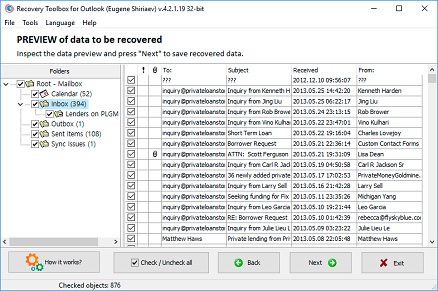
- Study data from OST file on preview page for free
- Select folder for saving data as PST file
- Save data as PST file
- Open saved PST file in Microsoft Outlook
Tool for opening OST files (Recovery Toolbox for Outlook) helps repair and convert data for Microsoft Outlook files. Tool for opening OST files can read damaged OST mailboxes and convert all documents into PST files.
Real customer reviews from TrustPilot
Open.ost files
How to open Microsoft 365, Office 365, Exchange Server or Microsoft Outlook .ost files.
You can open any OST file by using the following:
- Recovery Toolbox for Outlook (download)
- Online OST to PST converter
- Online repair service
In the first instance, you open the OST file locally in Windows and convert or repair it to a PST file(s). The online converter helps you convert OST to PST on any device and on any OS. The online repair service allows you to export data from damaged OST files to Outlook PST files.
Features of software for OST files opening:
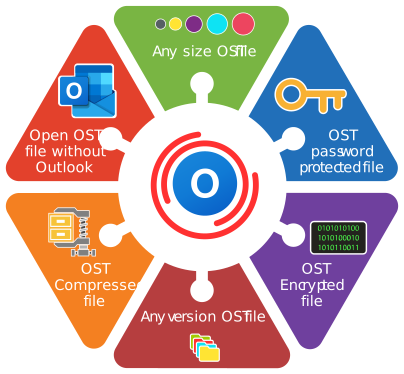
- analyses mailbox structure in OST files
- opens for analysis password-protected OST files
- saves data in form of separate EML, VCF, and MSG files
- gives easy data preview
- opens OST files without connection and authentication with Windows Domain Controller
- opens OST files without Exchange Server
- opens OST files without connection to IMAP mail server
- opens OST files without authentication and connection to Office 365
- opens OST files without connection to services Outlook.com/Hotmail/Live.com
- supports all versions of Microsoft Outlook (97/98/2000/2003/XP/2007/2010/2013/2016/2019/2021/2024 and Outlook for Microsoft 365)
- OST pst viewer
- MS Outlook Repair tool
- Convert OST file to PST file
- MS Outlook Repair
- Fix Outlook.PST
- Repair a.PST file
- Outlook save as EML
- Outlook PST Viewer
- 0x8004010F: Outlook data file cannot be accessed
- Repair Outlook 2019
- Repair Outlook 2016
Requirements:
- Windows 98/Me/2000/XP/Vista/7/8/10/11 or Windows Server 2003/2008/2012/2016 and above
- Microsoft Outlook 98, Microsoft Outlook 2000, Microsoft Outlook 2002, Microsoft Outlook 2003, Microsoft Outlook 2007, Microsoft Outlook 2010, Microsoft Outlook 2013, Microsoft Outlook 2016, Microsoft Outlook 2019, Microsoft Outlook 2021, Microsoft Outlook 2024 must be installed on the user's computer at the time of conversion (excluding Outlook for Office 365, Outlook for iOS and Outlook for macOS).
Notes:This product does not export contact groups

OST (Offline Storage Table) file: what it is and how to work with it
An OST (Offline Storage Table) file is a data format used by Microsoft Outlook to store mail, calendars, and other account items locally. OST's main advantage is that it allows you to work with your mailbox without an active Internet connection. This is especially important for those who use Microsoft Exchange, Gmail, Yahoo, Hotmail, or Office 365 accounts because Outlook creates an OST file automatically and encrypts it using a unique MAPIEntryID GUID key.
When you open a mailbox in Outlook, the program synchronizes your data with an Exchange or other IMAP server via this key, which keeps your mail and other data up to date. However, in cases where the Exchange server is unavailable or there is a hardware failure, the OST file may no longer be associated with the server and become "orphaned". This leads to difficulties in accessing mail and other data. An OST file is also created when you enable Cached Exchange Mode in Outlook, which speeds up work with data without a continuous connection to the server.
Each OST file is bound to a specific mailbox profile on the Exchange server. You cannot open an OST file using another profile or import it directly into Outlook. When creating a new Exchange profile, Outlook automatically generates a new OST file, and any unsynchronized changes left in the old file may be lost.
To solve the problem of an inaccessible or corrupt OST file, you can use specialized tools such as Recovery Toolbox for Outlook. This program allows you to open, view, and convert an OST file to the universal PST format, preserving data and mail access even if the original file is corrupted or derelict.
This process is essential to keep your mailbox running and ensure all data is available, even during a server crash or other unforeseen situations.

How to find and open an OST file on your computer
The OST (Offline Storage Table) file is important for Microsoft Outlook's offline operation. It allows you to save copies of e-mail and other data on your device when working offline. The location of OST files on your PC depends on the version of Outlook.
The default location of the OST file in different versions:
- Outlook 2024, 2021, 2019, 2016, and Outlook for Microsoft 365:
The OST file is located here: C:\Users\<username>\AppData\Local\Microsoft\Outlook
- Outlook 2013:
By default, the file is stored here: C:\Users\<username>\AppData\Local\Microsoft\Outlook
- Outlook 2010:
For Outlook 2010, the file is located here: C:\Users\<username>\AppData\Local\Microsoft\Outlook
- Outlook 2007:
In Outlook 2007, the OST file is located at the path: C:\Users\<username>\Local Settings\Application Data\Microsoft\Outlook
How to find an OST file if it is not in the default location:
If you cannot find the OST file in its default location, it may be due to personal system settings or Outlook configuration changes by enterprise requirements. In this case, you can look at Outlook's settings to find the file:
Step-by-step instructions on how to search for OST files on Windows computers:
- Step 1: Open Microsoft Outlook
- Run the program on your Windows computer and click on the 'File' tab in the upper left corner of the screen.
- Step 2: Open the account settings
- From the menu, select 'Account Settings' and then click on 'Account Settings' again in the drop-down menu.
- Step 3: Find the location of the OST file
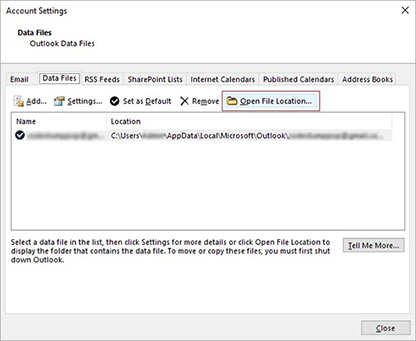
- In the window that opens, click on the 'Data Files' tab. Here, you will see a list of all the data files associated with your account. Locate the OST file you want to open and click the 'Open File Location' button. This will automatically open the folder where the OST file is stored.
Helpful Hints:
- Be aware of possible differences in the location of the OST file: The specific location of the OST file may vary depending on the system configuration and personal settings of Microsoft Outlook. For example, if you enable two-factor authentication or use network profiles, the file may be saved in a different location.
- Use Windows search: If you still can't find the file, use the built-in search. Type '.ost' in the search box, and the system will find all files on your device with that extension.
Note: It is essential to enable visibility of .ost files in Windows Explorer. To do this:
- launch Windows Explorer;
- From the main menu, select 'View | Options | Change folder and search options';
- In the window that opens, click the 'View' tab;
- Select 'Show hidden files, folders, and drives';
- uncheck the 'Hide extensions for known file types' checkbox;
- uncheck the 'Hide protected operating files' checkbox;
- Press the 'OK' button.
- Note: if your OST file is corrupted or inaccessible, you can use special repair tools like Recovery Toolbox for Outlook to repair data and convert it to PST format.
By following these steps, you can easily find and work with OST files on your computer, ensuring you can access the data even when you have server or Outlook problems.
How to open OST files in Outlook 2024, 2021, 2019, 2016, 2013, 2010, 2007, and Outlook for Microsoft 365
OST files are local copies of mailbox data that Outlook uses to work offline. However, data from an OST file must sometimes be opened or recovered, especially if access to the account has been lost or the file is corrupted. Several methods exist for opening OST files, including tools built into Outlook and third-party tools.
Method 1: Convert OST files to PST files using Outlook built-in tools
If your Outlook profile is active, you can use the built-in import and export wizard to convert an OST file to a PST file. This will save your mailbox data in a universal format that can easily be imported into any Outlook profile.
Step-by-step instructions:
- Step 1: Start the Import/Export Wizard
- Open Outlook and click on the 'File' tab.
- Select 'Open & Export' and click 'Import/Export'.
- Step 2: Export to PST
- In the open window, select 'Export to a file' and click 'Next'.
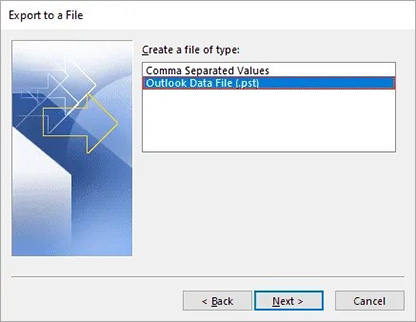
- Specify the file type 'Outlook Data File (.pst)' and click 'Next' again.
- Step 3: Selecting folders
- Specify which folders, subfolders, or items you want to export.
- Step 4: Saving the file
- Specify the path to save the PST file and click 'Finish'.
- Step 5: Import the PST file
- When the PST file has been created and data is converted into a new PSR file, it can be opened in Outlook using the import function by selecting 'Import from another program or file'.
This method helps when your Outlook profile is active, and the OST file is available. However, it will not work if the file is corrupted or the account is disabled.
Method 2: Using third-party software Recovery Toolbox for Outlook
If your OST file is no longer associated with an active profile (orphaned) or is corrupted, you can use Recovery Toolbox for Outlook to convert it to a PST file. This tool is designed for situations where the standard methods do not work.
Step-by-step instructions:
Step 1: Install Recovery Toolbox for Outlook
Download and install the program on your computer.
Step 2: Select the OST file
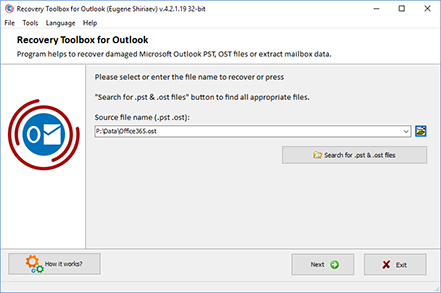
Open the program, select the OST file you want to recover, and click 'Next'.
Step 3: Data Preview
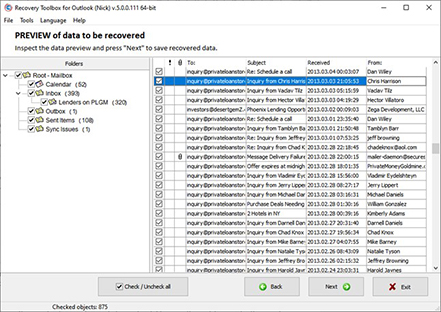
The program will scan the OST file and show you a preview of its contents, including e-mails, contacts, and calendars.
Step 4: Convert to PST
Select the folder to save the file to and start the conversion process by selecting the 'Save as PST file' option.
Step 5: Opening the PST file
When the conversion has been completed, you can open the converted PST file in Outlook.

When to use Recovery Toolbox for Outlook?
This tool is particularly useful in the following cases:
- Damaged OST file: The program can recover data from corrupted files and convert them to PST.
- Encrypted OST: If the file is password protected, Recovery Toolbox for Outlook can help you retrieve the data without entering the password.
- Outdated file version: If the OST was created in an unsupported version of Outlook, the tool converts the file to a compatible format.
- Large OST file size: The tool helps split large files into multiple PST files to improve data management.
- The OST file is orphaned: If you have no connection to the Windows Domain Controller, or if your entry is deleted from the Windows Domain Controller or Microsoft Exchange Server, or if you do not control the entry on an IMAP server (Gmail, Hotmail, Yahoo, and others) for various reasons but you have a local copy of the OST file, then the data from it can be transferred to a PST file and used in Outlook.
Conclusion
To open an OST file in Outlook, it must first be converted to PST. If the standard methods fail, Recovery Toolbox for Outlook will provide a reliable solution to recover and convert files while maintaining data integrity. The tool also allows you to import OST files from Office 365, Exchange, and other systems and export them in HTML, MHT, and EML formats.
When you need to open, read, or view an OST file without Outlook
The user cannot use Outlook on their device
- Microsoft Outlook is not installed.
The user received an OST file from another computer, a backup drive, an employee, or a system administrator, but Outlook is not installed on the current computer. - No Microsoft Office or Microsoft 365 license is available.
You only need to read a few messages, so purchasing or activating Outlook is not practical. - The Microsoft 365 subscription has expired.
Outlook has entered reduced functionality mode or no longer allows the user to work with the profile normally. - The user is running macOS, Linux, or Chromebook.
OST was created by Outlook for Windows, but it must be opened on a different operating system. - Outlook cannot be installed.
The user does not have administrator rights, or corporate policy prohibits software installation. - Outlook is not supported on this computer.
For example, the computer may be running an outdated version of Windows, an incompatible Office configuration, or an unsupported application architecture. - Outlook must be uninstalled or reinstalled.
Before reinstalling, you should review the contents of the OST file to ensure that important data will not be lost. - Independent viewing is required without creating a mail profile.
The user does not want to add an account, enter a password, complete MFA, or connect to the mail server.
The original account on the mail server or profile in the system is unavailable:
- The Outlook profile was accidentally deleted.
The OST file remains on the disk, but a new profile will not accept it as a regular data file. - The Outlook profile is corrupted.
Outlook reports that it cannot start the program, open the Outlook window, or open a set of folders. - Windows has been reinstalled.
The OST file is saved on another partition or in a backup, but the original Windows and Outlook profiles no longer exist. - A new Windows user was created.
The OST file belongs to the previous user profile, and the new Outlook profile cannot attach it through the standard process. - The computer was replaced.
The OST file remains on the old drive and needs to be checked on the new computer. - The old computer is broken.
The OST file was extracted from a healthy drive, backup, or restored partition. - OST was copied from another computer.
Simply copying the file does not transfer the original Outlook profile or the mail account link. - The domain, username, or corporate profile has changed.
The old OST file remains associated with the previous configuration. - The account has been removed from Outlook.
After deleting an account, the OST file may remain on disk, but it cannot be opened through a new profile. - The account has been blocked or disabled.
This can happen after termination, contract expiration, security breach, or administrative blocking. - The user has forgotten their password.
There is no access to the server, but a local copy of the email still exists. - Multi-factor authentication is unavailable.
For example, a phone was lost, an authenticator app was deleted, or the previous number is unavailable. - The employee's account or license has expired.
The administrator can no longer access the previous email address, but the OST file remains on the work computer. - The employee left the company or died.
The organization needs to retrieve business correspondence, contacts, meetings, or documents from the employee's local mail cache—provided it has the legal authority to do so.
The mail server is unavailable.
- Exchange Server has been shut down or decommissioned.
The OST file is the only surviving copy of part of the mailbox. - The server was damaged.
This could be due to a hardware failure, corruption of the Exchange database, a cyberattack, or administrator error. - The company has stopped using the old mail server.
The server has already been decommissioned, and the old OST files remain on employees' computers. - The Microsoft 365 tenant has been deleted or closed.
Resynchronization with the cloud is no longer possible. - The mailbox has been deleted from the server.
The deleted mailbox's retention period has expired, but the local OST file still exists. - The domain or mail provider no longer exists.
- There is no connection to the internet or corporate network.
This may occur after the company has closed, the domain owner has changed, or the provider has terminated its services. - VPN or the corporate infrastructure is unavailable.
You cannot connect to Exchange, but the OST file is located on your local computer. - Microsoft 365 or Exchange is experiencing an extended outage.
Independent access to previously synchronized data is required.
OST or Outlook is corrupted.
- Outlook won't start.
This could be due to a corrupted profile, a crashed add-in, corruption of Office, or corruption of the OST file itself. - Outlook freezes when opening the mailbox.
Data needs to be read without loading the corrupted file into Outlook. - The error "OST cannot be opened" appears.
Outlook cannot read the internal structure of the file. - The error "The set of folders cannot be opened" appears.
The profile or data file is corrupted or no longer matches the account. - Outlook reports that the file is not an Outlook data file.
Possible causes include a damaged header, an interrupted copy operation, or partial file recovery. - The OST file was corrupted after an abnormal shutdown.
For example, this may happen because of a power outage, a Windows freeze, or a forced restart. - The OST file was corrupted by disk errors.
Possible causes include bad sectors, SSD/HDD degradation, or a file system failure. - The file was recovered after deletion or formatting.
It is necessary to determine which folders and messages were actually saved. - The OST file was not completely copied.
It is necessary to check the partial file and determine if at least some of the information can be extracted from it. - The OST file is too large.
Outlook is slow, freezes, does not search, or is constantly indexing the file. - Synchronization errors occurred.
Outlook and Outlook Web display different contents, so you should examine the local copy separately. - Some folders or messages disappeared after syncing.
You need to check if any old or local copies of items remain inside the OST file.
Microsoft specifically states: if the corrupted OST file contains local data that is not on the server, you should export it to the PST file before deleting and recreating the OST file.
Need to find or extract specific information from the OST file
- Need to quickly read an old email.
- Need to find an email by sender, recipient, subject, date, or keywords.
- Need to view the mail folder tree.
- Need to save one or more attachments.
- Need to find a contract, invoice, report, photo, or other document in attachments.
- Need to view contacts and address books.
- Need to find a phone number, address, or customer information.
- Need to view the calendar.
- Need to recover meeting details, attendees, or event times.
- Need to read Outlook tasks, notes, or journal entries.
- Need to view drafts.
- Need to check the Outbox folder.
This may contain messages the user created locally but didn't have time to send or sync. - Need to check the Deleted Items folder.
- Need to find locally unsynced items.
This is one of the most important cases, as such data may not even exist on the server. - Need to review the shared mailbox cache.
The OST file may contain downloaded shared mailbox data if local caching was enabled. - You need to check the cache of shared or public folders.
- You need to extract only certain types of data.
For example, only emails, contacts, meetings, or attachments.
Check before restoring or purchasing a program
- You need to make sure that the OST file is not empty.
- You need to check how many folders and items it contains.
- You need to determine the date range of messages.
- You need to check for the required email before complete conversion.
- You need to evaluate the quality of the damaged file recovery.
- You need to compare the original OST file with the resulting PST file.
- You need to ensure that the folder structure, message properties, and attachments are preserved.
- You need to check several OST files and select the correct one.
The disk may contain account.ost, account(1).ost, Outlook.ost, Outlook0.ost, and other copies. - You need to determine which user owned the file.
- You need to detect duplicates between several OST files.
- Need to view drafts.
- Need to check the Outbox folder.
This may contain messages the user created locally but didn't have time to send or sync. - Need to check the Deleted Items folder.
- Need to find locally unsynced items.
This is one of the most important cases, as such data may not even exist on the server. - Need to review the shared mailbox cache.
The OST file may contain downloaded shared mailbox data if local caching was enabled. - You need to check the cache of shared or public folders.
- You need to extract only certain types of data.
For example, only emails, contacts, meetings, or attachments.
Corporate, legal, and investigative tasks related to OST files
- Internal investigation.
For example, reviewing employee correspondence if authorized. - Forensic examination and eDiscovery.
- Compliance with a subpoena or regulatory requirement.
- Audit of business correspondence.
- Verifying compliance with corporate policies.
- Information leak investigation.
- Analysis of phishing attacks or malicious emails.
- Finding the source of an account compromise.
- Preserving digital evidence in an unaltered form.
In this case, the OST file is first copied, a checksum is calculated, and only the copy is examined. - HR handover after an employee leaves the company.
- Searching for correspondence on unfinished projects, clients, or suppliers.
- Inventorying OST files found on old workstations.
- Mass analysis of OST files after a company merger, liquidation, or restructuring.
2. When data migration from OST files is necessary
- Migrating to a new computer when the old mailbox is no longer accessible.
- Creating a new Outlook profile and migrating local data from the old profile.
- Migrating to a new Microsoft 365 account.
- Changing an email address or company domain.
- Migrating between two Microsoft 365 tenants.
- Migrating from an on-premises Exchange Server to Microsoft 365.
- Migrating from Microsoft 365 to an on-premises Exchange Server.
- Migrating between different Exchange servers.
- Switching to another Hosted Exchange provider.
- Switching from Exchange to Gmail, Google Workspace, or another email service.
- Switching to an IMAP server or another email client.
- Merging two mailboxes of the same user.
- Consolidating several old OST files into a single archive or mailbox.
- Transferring a terminated employee's data to their manager or successor.
- Transferring project correspondence to another department.
- Migrating shared mailbox contents to a new shared mailbox.
- Migrating data after a merger or acquisition.
- Migrating after a rebrand or corporate domain change.
- Recovering data after an unsuccessful migration.
- Re-migrating items missed by the first migration.
- Migrating local unsynchronized messages to a new mailbox.
- Migrating surviving data after an Exchange failure.
- Importing old corporate mailboxes into archived Microsoft 365 mailboxes.
- Uploading archives to Microsoft Purview for search, retention, and eDiscovery.
For user and corporate imports, Microsoft uses the PST format: it can be imported into an Outlook mailbox, and Microsoft Purview supports bulk import of PST files into Exchange Online.
If the original Outlook profile is healthy and the server is accessible, migration should typically be performed using Outlook's standard export feature. If only an offline or damaged OST file remains, a separate conversion or recovery tool will be required.
3. When data export from OST files is needed
Export is needed when you need to retrieve specific data or a different format, rather than your entire mailbox.
- Export individual messages from an OST file.
- Export selected folders from an OST file.
- Export messages for a specific period.
- Export correspondence from a specific sender or recipient.
- Export only unread or marked messages.
- Export messages with a specific subject.
- Export messages with attachments.
- Save attachments in bulk.
- Export contacts.
- Export contact groups and mailing lists.
- Export calendars.
- Export individual meetings and events.
- Export tasks.
- Export notes.
- Export journal entries.
- Export drafts.
- Export unsynchronized messages from the Outbox.
- Export shared mail contents.
- Export cached public folders.
- Export Deleted Items if they are physically preserved.
- Export recovery results from a damaged OST file.
- Export messages to MSG files for further processing in Outlook.
- Export messages to EML files for other email clients.
- Export contacts to VCF or CSV files.
- Export calendars to ICS files.
- Export emails to PDF, HTML format, or text for reading and printing.
- Export attachments in their original formats.
- Export email metadata for analysis or reporting.
- Export data for forensic analysis.
- Export data to electronic archiving systems.
- Export to CRM, Help Desk, or a workflow system.
- Export for deduplication and classification.
- Export for searching for personal or confidential data.
- Export for transfer to a client, auditor, lawyer, or investigator.
- Export for independent storage without a mail server.
A standard export from a running Outlook creates PST and can include mail, calendar, contacts, and tasks. However, Microsoft warns that if Outlook has only downloaded a portion of the history, such as messages from the last year, only the downloaded range will be included in the export until the user changes the sync setting to all mail.
4. When is a backup copy of data from OST needed?
Copying the OST file itself cannot be considered a reliable portable backup. If the server is running, the OST file can be recreated; if the server is unavailable, the copied OST file may not open in another profile. Therefore, "backing up the OST file" should generally be understood as:
- Saving the original OST file as evidence or an emergency recovery source;
- Exporting its contents to a PST file;
- Saving individual items in additional formats.
Common cases for creating an important backup copy of the OST file:
- Before reinstalling Windows.
- Before reinstalling or repairing Microsoft Office.
- Before deleting an Outlook profile.
- Before creating a new profile.
- Before deleting and recreating the OST file.
- Before starting a repair of a damaged file.
- Before replacing HDD or SSD.
- Before repairing the file system.
- Before migrating a user to a new computer.
- Before changing the Windows domain.
- Before deleting a mail account.
- Before terminating an employee.
- Before disabling the Microsoft 365 license.
- Before deleting a mailbox.
- Before the deleted mailbox's retention period expires.
- Before closing the Microsoft 365 tenant.
- Before disabling the old Exchange Server.
- Before migrating between servers or tenants.
- Before changing an email domain.
- Before a mass administrative migration.
- Before purging or reducing the size of a mailbox.
- Before deleting old emails from the server.
- Before changing retention policies.
- For long-term local archiving.
- To preserve a former employee's email.
- For a legal hold.
- To comply with regulatory requirements.
- To protect against accidental deletion.
- For disaster recovery after a server failure.
- For ransomware protection.
- For saving local drafts and unsent messages.
- For saving items not in Outlook Web.
- For recording the state of a mailbox on a specific date.
- For storing multiple historical versions of an archive.
- For backing up important emails and attachments separately from the mail server.
Microsoft also describes a standard email backup using export to a PST file.
5. When is it necessary to convert an OST file to a PST file?
Converting OST to PST is necessary when the data needs to be portable and suitable for opening or importing.
- You need to open an old OST file in a different Outlook profile.
- You need to attach an archive as a separate Outlook data file.
- You need to import data to a new mailbox.
- You need to move email to another computer.
- You need to transfer data to another user.
- You need to import email into Microsoft 365.
- You need to prepare an archive for bulk import via Microsoft Purview.
- You need to save email after deleting the original account.
- You need to recover data from an "orphaned OST file"—an OST file that has lost its connection to the profile.
- You need to save the contents of a damaged OST file.
- You need to migrate local items that are not on the server.
- You need to create a portable backup.
- You need to preserve the mail folder structure.
- You need to save messages together with attachments and metadata.
- You need to save contacts, calendars, tasks, and notes.
- You need to merge data from multiple OST files.
- You need to separate old email from the active mailbox.
- You need to reduce the server mailbox size by moving its history to an archive.
- You need to transfer mail data to HR, the legal department, or an auditor.
- You need to perform a search or eDiscovery with tools that accept PST files.
- You need to restore the archive after an Exchange failure.
- You need to complete a failed migration.
- You need to migrate data after the mail server has been shut down.
- You need to save email after the Microsoft 365 subscription expires.
- You need a standard data file that Outlook can open or import.
6. When users want to "change an OST extension to PST"
This expression is typically used in the following situations:
- Outlook won't open the old OST file;
- The user wants to import the OST file via the import wizard;
- Need to move the OST file to another computer;
- Need to connect the file to a new profile;
- Need to download mail to Microsoft 365;
- Need to make a backup;
- The original account has been deleted;
- Exchange Server is unavailable;
- The OST file is corrupted;
- The mail archive needs to be transferred to another user.
However, technically, in none of these cases can renaming the extension be enough: mailbox.ost → mailbox.pst
Renaming changes only the file name. The internal structure, technical properties, and OST profile binding remain unchanged, so Outlook does not receive a valid PST file. You must:
- read the internal structure of the OST file;
- restore accessible folders and elements;
- create a new, valid PST file;
- transfer emails, attachments, contacts, calendars, tasks, and other data to it;
- verify the integrity of the result.
FAQ-Wiki:
Viewing and Reading a Standalone OST File Without a Working Copy of Outlook
Question:
An old corporate laptop running Windows 10 Pro 22H2 had Outlook 2019 installed. After the employee left, the account was disabled, the Office license was revoked, and the Exchange Server was later decommissioned. The sysadmin pulled the SSD and found several files named account.ost and Outlook0.ost; some mail may never have finished syncing to the server. Outlook is not installed yet on the new Windows 11 Pro machine, and I first need to safely inspect the messages, contacts, calendar, tasks, notes, and attachments without spinning up a mail profile or entering the old password. I need a practical how to open ost file workflow so I can view ost file without outlook, understand how to read ost file data, and document how to view ost file content from one cache or how to view ost files when several copies are present. How can I view ost file contents and pick the right copy? Would an outlook ost reader or a free outlook ost file viewer be enough for opening ost file data just for inspection? After that, does ost open mean I can mount the file directly and put the recovered data back into Microsoft Outlook?
Answer:
Recovery Toolbox for Outlook opens the OST file, previews its contents, and saves the selected data to a PST file.
An OST file is a local cache tied to a specific mail account, not a portable archive like a PST file. That is why opening ost file data with built-in tools normally depends on the original profile, account, and server. If the profile still works and the mailbox is available, the obvious route is to open Outlook or Outlook on the web, locate the required items, and run Outlook’s built-in export to PST. If the server is online, it is often easier to rebuild a damaged OST cache and sync it again. That route is a dead end, however, when the profile has been removed, the account has been disabled, the server no longer exists, local items never synced, or the file is physically damaged.
For a how to open ost file or how to read ost file recovery runbook, use Recovery Toolbox for Outlook on a Windows PC to analyze the file and preview the items it can find. It lets you view ost file without outlook and view ost file contents before saving anything. It also covers the common how to view ost file case and the broader how to view ost files inventory job when several caches are on disk. In that sense, the app works as an outlook ost reader, while its free preview functions as a free outlook ost file viewer. To move the data back into Outlook, the software creates a valid PST file; an ost open shortcut or a quick rename is not enough.
A standalone OST preview is useful in all of these situations:
- Outlook cannot be used: the app is not installed; there is no Office or Microsoft 365 license; the subscription expired; the OST is on a macOS, Linux, or Chromebook machine; installing Outlook is blocked or the user lacks admin rights; the current Windows build, CPU architecture, or Office setup is incompatible; Outlook is about to be removed or reinstalled; or the file must be viewed without creating a profile, entering a password, passing MFA, or connecting to the server. Because Recovery Toolbox for Outlook runs only on Windows, copy a file from a Mac, Linux PC, or Chromebook to a Windows computer or an approved Windows environment.
- Specific data must be found: one old email; a thread filtered by sender, recipient, subject, date, or keywords; the folder tree; one or more attachments; a contract, invoice, acceptance certificate, photo, or other document; contacts, the address book, a phone number, or a client address; a calendar, meeting, attendees, or event time; tasks, notes, journal entries, and drafts; local messages in the Outbox; items in Deleted Items; unsynced items; cached data from a shared mailbox, shared folders, or public folders; or just one data type such as messages, contacts, appointments, or attachments.
- The file must be checked before recovery or purchase: confirm that the OST is not empty; count folders and items; identify the date range; locate the required mail before a full conversion; gauge recovery quality for a damaged file; compare the OST with the resulting PST; inspect the folder structure, message properties, and attachments; pick the right cache from account.ost, account(1).ost, Outlook.ost, and Outlook0.ost; identify the owner; or detect duplicates across several OST files.
Practical workflow with Recovery Toolbox for Outlook:
- Fully exit Outlook and copy each OST file to its own read-only folder. Calculate a checksum for data that may have legal or audit value.
- If the original profile still works, first run Outlook’s built-in export to PST and treat that file as the primary archive.
- For an orphaned, damaged, or unsynced OST, launch Recovery Toolbox for Outlook on Windows and select the file.
- Choose Conversion mode or Recovery mode.
- Review the converted mailbox tree and select the data you need.
- Save the result to a new PST file without overwriting the original.
- Open the PST in Microsoft Outlook and spot-check old and recent dates, folders, attachments, contacts, calendar entries, tasks, and notes.
- Store the original OST, the verified PST, and the verification log separately. For multiple OST files, keep a register in the format owner — source file — checksum — resulting PST — verification status.
Import the verified PST into a live Outlook profile when the archive needs to become working data. The employee or successor can then search old mail, reply on legacy projects, use the contacts, and view calendar data without access to the former Exchange profile.
Opening an Old, Orphaned, or Damaged OST File in Microsoft Outlook
Question:
A Windows 11 Pro 24H2 computer has classic Outlook for Microsoft 365 installed. After reinstalling Windows, I created a fresh profile and connected a new corporate account, but the old mailbox in the previous Microsoft 365 tenant has already been deleted, MFA is unavailable, and the only local copy of the mail is user@old-domain.ost from the old drive. Outlook throws “The set of folders cannot be opened” when I try to attach the file and sometimes just hangs; I especially need unsynced drafts, messages from the Outbox, contacts, and meetings. I need one admin runbook that covers how to open ost in outlook, how to open ost file in outlook, how to open an ost file in outlook, how to view ost file in outlook, how to open ost files in outlook, how to open outlook ost file, and even the awkward but common how to open a ost file in outlook case. Our old help-desk labels also say outlook ost file open, opening ost files in outlook, how to open ost file outlook, how to open .ost file in outlook, outlook open ost file, and how open ost file in outlook. Can Outlook actually mount this cache by itself, or does the file have to be repaired and converted first?
Answer:
Recovery Toolbox for Outlook converts an inaccessible OST file to PST and returns the data to Microsoft Outlook.
Directly attaching an old OST as an independent data file usually fails: OST is tied to the original profile and server account, while Outlook opens and imports portable PST archives. The admin labels how to open ost in outlook, how to open ost file in outlook, how to open an ost file in outlook, and how to view ost file in outlook therefore all come down to the state of the original profile. The same limitation applies to how to open ost files in outlook, how to open outlook ost file, and how to open a ost file in outlook when multiple orphaned caches are involved.
The obvious fix works only while the old account is still active: start the same Outlook profile, wait for a full sync, and export the required folders through File → Open & Export → Import/Export → Export to a file → Outlook Data File (.pst). If the OST is damaged but all mail is definitely still on Exchange or Microsoft 365, close Outlook, keep a copy of the local cache, rebuild the OST, and sync the mailbox again. Never delete the old OST before exporting if it may contain local-only items that are missing from the server.
When the original link is gone, Recovery Toolbox for Outlook handles opening ost files in outlook by converting the cache to a valid PST first. Runbook shorthand such as outlook ost file open, how to open ost file outlook, how to open .ost file in outlook, outlook open ost file, and how open ost file in outlook should all point to that convert-then-open workflow, not to a fake mount command. The same is true when a ticket simply says how to open outlook ost file.
The tool is needed for these common failure modes:
- The account is unavailable: it was removed from Outlook, blocked, or disabled; the password is lost; MFA cannot be completed because the phone, app, or number is gone; the account or license expired; or an employee left or died and the organization is legally authorized to recover the person’s messages, contacts, meetings, or documents.
- The server is unavailable: Exchange Server was shut down, decommissioned, or damaged by hardware failure, a cyberattack, an admin mistake, or database corruption; the company retired the old server; the Microsoft 365 tenant was closed; the mailbox was deleted and its recovery window expired; the domain or provider no longer exists; the internet, corporate network, or VPN is unavailable; or Exchange or Microsoft 365 is in a prolonged outage.
- Outlook or the OST is damaged: Outlook will not launch or freezes; it reports OST cannot be opened, The set of folders cannot be opened, or says the file is not an Outlook data file; the header or internal structure was damaged by a power cut, crash, forced reboot, bad sectors, SSD/HDD wear, or a file-system failure; the file was recovered after deletion or formatting; the OST copy is incomplete; or an oversized cache causes lag, freezes, endless indexing, or broken search.
- Sync was incomplete: Outlook and Outlook on the web show different data; folders or messages disappeared after syncing; or the old OST may still hold local drafts, unsent mail, calendar edits, or other items that never reached the server.
Practical recovery and import workflow:
- Close Outlook and make a working copy of the old OST.
- Install Recovery Toolbox for Outlook on Windows.
- Select the OST on the first screen.
- Choose Conversion mode for a readable orphaned file or Recovery mode for a damaged file.
- Review the folders that were found and select the messages, contacts, calendar entries, tasks, notes, and attachments you need back.
- Choose a local output folder, select PST as the save format, and start the job.
- Open the resulting PST in Outlook as a separate data file. If the items must be moved into a new mailbox, use the Import/Export Wizard or drag the verified folders into the target profile.
- Compare the folder count, date range, attachments, contacts, and calendar with the preview. Keep the source OST until verification is complete.
Conversion creates a new, structurally valid PST without the old profile binding. Microsoft Outlook then works with a portable data file instead of trying to treat someone else’s or a damaged cache as a live OST.
Creating a Portable Backup of One or More OST Files
Question:
A workstation running Windows 10 Pro 22H2 and Outlook 2021 uses a cached Exchange profile. Before replacing the SSD, reinstalling Windows, removing the old profile, and disconnecting the Microsoft 365 license, I was asked to preserve a departing employee’s mail. The server mailbox will be deleted soon, and Outlook on the web is missing some drafts, messages from the Outbox, local calendar entries, and old attachments. I can copy employee.ost to an external drive, but a new Outlook profile will not accept that cache directly. Can you explain how to backup ost file data so the backup can be verified and opened after the account is gone? And how should we backup ost files when several old caches are found on the PC?
Answer:
Recovery Toolbox for Outlook creates a portable PST copy of the data from one or more OST files.
A plain copy of an OST is useful as a preserved source, but it is not a dependable portable backup because the file remains tied to the old profile and server. The correct how to backup ost file procedure has two parts: keep the source OST unchanged, then export or recover its contents to a PST. To backup ost files in bulk, also log the owner, source path, file size, copy date, checksum, and verification result for every cache.
When the profile and server are healthy, the obvious route is to use Outlook’s built-in export to PST with subfolders included and confirm that Outlook has synced the full required mail range. An OST cache that exactly mirrors an accessible server mailbox can be rebuilt, so keeping it as the only backup makes little sense. If the account will be disabled soon, the server is already offline, the profile is damaged, or the cache contains local-only items, save the OST first and extract its data to PST.
A backup is required in all of these cases:
- Before technical changes: reinstalling Windows; reinstalling or repairing Microsoft Office; removing an Outlook profile; creating a new profile; deleting and rebuilding an OST; attempting damaged-file recovery; replacing an HDD or SSD; repairing the file system; moving the user to a new computer; or changing the Windows domain.
- When synchronization produced an incomplete result: Outlook and Outlook on the web show different data; folders or messages disappeared after syncing; or the old OST may contain local drafts, unsent messages, calendar changes, or other items that were never stored on the server.
Practical recovery and import workflow:
- Close Outlook and make a copy of the old OST.
- Install Recovery Toolbox for Outlook on Windows.
- Select the OST on the first screen.
- Choose Conversion mode for a readable orphaned file or Recovery mode for a damaged file.
- Review the folders found and select the messages, contacts, calendar entries, tasks, notes, and attachments to restore.
- Choose a local destination folder, select PST as the output format, and start the process.
- Open the resulting PST in Outlook as a separate data file. If the items belong in a new mailbox, use the Import/Export Wizard or move the verified folders into the target profile.
- 8. Compare the folder count, date range, attachments, contacts, and calendar with the preview. Retain the source OST until the verification pass is complete.
Conversion is required because it creates a new, valid PST without the old profile binding. Microsoft Outlook then works with a portable data file instead of trying to accept a foreign or damaged cache as an active OST.
Exporting, Converting, Migrating, and Importing an OST File into Outlook Through a PST File
Question:
Our company is moving from on-premises Exchange to a new Microsoft 365 tenant. A Windows 11 Pro 24H2 PC has classic Outlook for Microsoft 365 installed, but the first migration skipped project subfolders, contacts, calendar items, tasks, notes, and local messages from the Outbox. The old server is already offline, the old profile will not launch, and all I have left is an orphaned OST. I need to know how to export ost to pst, how to change ost to pst file, safely migrate ost to pst, and how to import ost file into outlook without losing the folder tree, attachments, or metadata. Can I just rename mailbox.ost to mailbox.pst?
Answer:
Recovery Toolbox for Outlook can migrate ost to pst for import into Microsoft Outlook.
Renaming mailbox.ost to mailbox.pst changes only the extension; it does not convert the internal file structure. A runbook for how to change ost to pst file must therefore create a new, valid PST rather than just rename the cache. If the original profile and server still work, the clean route is to sync the mailbox fully and use Outlook’s built-in export. When only a standalone, orphaned, or damaged cache remains, Recovery Toolbox for Outlook handles how to export ost to pst and how to import ost file into outlook by creating and verifying an intermediate PST file.
OST-to-PST migration is required for all of these moves:
- A new computer or a new Outlook profile when the old mailbox is already unavailable; a new Microsoft 365 account; an address or domain change; a tenant-to-tenant Microsoft 365 migration; a move from on-premises Exchange to Microsoft 365 or back; a move between Exchange Servers; a Hosted Exchange provider change; or a move to Gmail, Google Workspace, an IMAP server, or another mail client.
- Merging two mailboxes that belong to the same user; combining several old OST files into an archive or a new mailbox; handing a former employee’s mail to a manager or successor; transferring project correspondence to another department; or moving a shared-mailbox cache into a new shared mailbox.
- A merger, acquisition, liquidation, restructuring, rebrand, or corporate domain change; recovery after a failed migration; a second pass for skipped items; transfer of local unsynced messages; or data recovery after an Exchange outage.
- Importing legacy corporate mail into Microsoft 365 archive mailboxes; preparing PST files for bulk import and eDiscovery in Microsoft Purview.
Export is not limited to an entire mailbox. It may include:
- Individual messages; selected folders; mail from a specified date range, sender, or recipient; messages with a particular subject; unread or flagged messages; messages with attachments; or the attachments themselves in their original formats.
- Contacts, contact groups, and distribution lists; calendars, individual appointments, and events; tasks, notes, journal entries, and drafts; unsynced mail from the Outbox; shared-mailbox data; cached public folders; and physically recoverable Deleted Items. Test complex contact groups separately because not every converter or target format supports them.
- Recovery results from a damaged OST; messages exported as MSG for Outlook or EML for other clients; contacts as VCF or CSV; calendars as ICS; mail as PDF, HTML, or plain text for reading and printing; and metadata for analysis and reporting. If the required target format is not available directly, save the data to PST or another supported intermediate format first, then use Outlook or the destination system’s built-in export.
Converting OST to PST preserves the folder tree, messages with attachments, and metadata, and it can help consolidate several OST files. A PST also separates historical data from the active mailbox, reduces server-mailbox bloat, and provides a standard file that Outlook can open and process.
Practical workflow with Recovery Toolbox for Outlook:
- Fully exit Outlook and copy each OST to its own read-only folder. Calculate a checksum for legally significant or audit-sensitive data.
- Install Recovery Toolbox for Outlook on Windows and select the OST on the first screen.
- Choose Conversion mode; use Recovery mode for a damaged file.
- Inspect the folder tree and select the messages, attachments, contacts, calendar items, tasks, and notes to migrate.
- Choose the destination folder and select PST as the output format.
- Start the save job, then compare the PST with the preview: folder structure, item counts, date range, and attachments.
- Open the PST in Outlook as a separate archive or import it into the target mailbox. In classic Outlook, use File → Open & Export → Import/Export → Import from another program or file → Outlook Data File (.pst). In new Outlook for Windows, use the Data Files area; the current Microsoft implementation also requires classic Outlook with the same bitness to be installed.
- After import, verify the target folders, contacts, calendar entries, tasks, and notes. Do not delete the source OST or the verified PST until the migration and backup are fully signed off.
Import is required because conversion creates an archive but does not place the items in the new working mailbox. Opening the PST keeps it as a separate archive; importing it, or copying verified folders in a controlled way, moves the recovered data into the active Microsoft Outlook profile.
Resources:
Additional information, sources and resources for a OST & PST files converting and repairing:
- Microsoft Outlook on Wikipedia: https://en.wikipedia.org/wiki/Microsoft_Outlook
- Microsoft Office Outlook Team Blog: https://www.microsoft.com/en-us/microsoft-365/blog/2017/03/01/outlook-2016-for-mac-adds-support-for-google-calendar-and-contacts/
- Outlook Developer Portal: https://learn.microsoft.com/en-us/office/client-developer/outlook/outlook-home?redirectedfrom=MSDN
- MAPI - Messaging Application Programming Interface
- PST - Personal Storage Table
- OST - Offline Storage Table file format
- Microsoft Exchange Server
- IMAP - Internet Message Access Protocol
- MAPI Message Store
- .msg - Microsoft Outlook Email Message
- vCard - VCF (Virtual Contact File)
- EML - Internet e-mail message format
Victor G. Bobrov, Senior Software Engineer.
MCSD, MCDBA
Microsoft Outlook expert in storing and displaying data from PST and OST files, specialist in converting and recovering data from PST/OST files with over 20 years of experience.
Customer's reviews and ratings:
Thank you. This application is very useful.
first time using this, hopefully it helps recover my acadmic materials...
good app
Amazing
He saved my life
The program works quickly and very well, although it did fail with one folder (but other programs did too). Overall, 10/10.
good tool
Impresionante, no imaginé tal eficiencia, muchas gracias.
These guys are great. I was able to recover the 5 most recent emails from each and every sub folder. This is the free version. It's a life (email) saver. Thank you.
80 años. Retirado. RECOVERY,TOOLBOX, facilísimo de usar. Fabuloso.
This is gold.. loved the service
I accidentally deleted files in my email inbox, and I was able to recover many of the deleted files using your tool.
:=)
I lost the files after a computer crash.
Had to re-install windows.
I want to recover all pst, and ost. Files.
canot tell 100000000 thanks
Repairing a damaged PST file. I was able to recover most of my emails.
nice
Excelente programa, mis felicitaciones.
super recovery, very fast and did a perfect job, can recommend to any one looking for recovery software.
100% ist Gut!
Hello Recovery Toolbox team,
thank you very much for your support. One of my PCs froze, forcing me to do a hard reset. At the time, Outlook was open. After the restart, Outlook could no longer find the PST. Renaming the PST wasn't possible, even in safe mode. Apparently, a program was accessing the PST even though Outlook was closed on all computers. A Google search led me to your tool. After the repair (2-3 hours), I was able to save the PST under a new name and use it again.
Thanks again.
Best regards, Dietmar Kroschel
I needed to access OST files on an old hard disk. As I don't use Outlook as email client, I needed to find a tool. I was not recovering from corrupted data.
Thanks for making the tool👍
Feels good! i like it! thnx for devs
its workilng very well in 2025 thank you
Great program, really helped me out!
Excel.lent! I couldn't with other applications and this one worked the first time!
Good program
sir best softwear for everyone . Thanks
Tank you very very much the software is help full
Had my agenda only in the ost, so not synched to the webmail.
After making a new profile my agenda items were gone. Used the Recovery tool for Outlook to restore the items to a PST from a backup of the old OST files. And then copied them back to my agenda.
This worked well although only the agenda item are restored, not the attachments and extra information field.
VERY GOOD
Really works. It identifies the bad sectors and skips them while getting rest of the data out.
Love it.. except.. you should consider including a PAUSE/RESUME button. Just sayin'. Thanks.
I wanted to send a large pdf file (20Mb).
While sending I disrupted this process (turned off pc?). As a result I had an unclosed mail in my pst-file. As a result my pst-file was corrupted and my outlook could no longer be started/opened.
This tool fixed PST-file.
Recovery Toolbox for Outlook was able to convert an .OST to .PST, but the ability to open the .PST is missing. The help text says it is under the File menu, but all that is there is "Exit".
Хорошая вещь! Отлично справляется, за секунду исправил испорченный файл.
I don't know if the files were damaged, but they could well have been. These two files were backups of PST files that I had made before transitioning from the POP mail protocol to IMAP.
IMAP attached itself to my original emails and, apparently, those stored as backups. Then all the open folders in Outlook began to disappear until there were none remaining. I had no clue what had happened. I couldn't imagine they were hijacked and held at the mercy of my ISP. Then IMAP somehow transformed my PST backup files into OST files, which Outlook 2024 cannot read.
The Toolbox was able to quickly and efficiently recreate the files as PST.
That allowed me to restore and open every one of the 24,000 files.
Later, I learned that IMAP doesn't just sync emails created after its implementation but every file that it automatically and without permission opens in Outlook. I was unaware that this caused me to exceed my storage limit, leading to the disappearance of my 24,000 emails.
It is a hazardous, intrusive, and damaging protocol. It is also a potentially lucrative source of business for your company.
Best
nice
I exported from Oulook 365 a folder with a lot of e-mails, ans had a .pst 2,28 Go file. Then, I did a factory reset of my PC. I could of course import the pst file in Outlook, but I did not wanted to do that, in order to avoid duplicates in Outlook. So, I used Toolbox recovery to convert the pst file in msg, ans I copied and paste the msg files in Outlook, and it worked perfectly.
I am using Microsoft Outlook and for some unknown reason I was unable to export my OST file to PST file.
Windows stopped working properly and I had to restore it. It went well, but I lost all the applications that were not part of Windows, such as Microsoft Office.
I reinstalled Microsoft Office but Outlook can't open the OST file. So I had to use Recovery Tollbox to convert it to a PST file.
Everything went well and I recovered my old emails and contacts.
Okay, here is the why I am so frustrated at the moment with the recovery of emails from Outlook.
Apparently, there was an upgrade to Outlook that my system allowed and the program would not load. I followed instructions on how to get it to load from MS support forum and it finally loaded however all my contacts were lost. Again, following MS support I deleted the email account and reinstalled it and that is when everything went south in a big way.
Now I had some of my contacts back (from the cloud) but none of my stored files inside Outlook. I purchased the Recovery Toolbox to retrieve those files. While running the program I could see the files being recovered in the folders and subfolders that they were originally stored in. But, when the recovery was complete the files were not in the folder and subfolder in my Outlook but in individual unsorted and ungrouped emails. That said, the folders and subfolders did come over as they were supposed to on my Iphone! Well, now Outlook determined that I am over quota on emails and will not let new emails arrive.
I deleted as many non-essential emails, files and folders that I could in Outlook so that I can receive a few emails before I have to delete some more. I AM AFRAID TO DELETE OR MOVE ANY OF THE FOLDERS AND SUBFOLDERS ON MY IPHONE FOR FEAR THAT I WILL LOSE THEM.
So, I want to get away from Outlook so downloaded em Client but when I try to allow Outlook to download my main email to the new program I get the error “there was an error obtaining credentials via oAuth”.
And that is where I am, stuck with no way to consistently receive emails on my main email address and no way to move my emails to a new program. Also, I am really afraid that I will lose all the folders and subfolders on my Iphone if I don’t get them saved to a hard drive or somewhere else.
Excelente Aplicación
Hello.
I don't know exactly what I expected, but probably more than I got.
It may well be that my emails were recreated but all emails are empty. I can see sender and recipient but that's all.
I had probably hoped that some emails could be recreated so that I could read the whole email. But no waste of money.
Kind regards
Kuno Nielsen
all perfect ! good job thanks
Çok Güzel bir program.
Excellant software
Dear Support,
Glad to tell my story here what went wrong.
I had this new e-mail account in Japan which I wanted to add to my Outlook.
I have a windows 11 laptop with the new outlook.
The e-mail account is a pop3 account, but I could not add it to my outlook.
Adding it to my Android phone worked.
Adding it to another PC with Windows 10 and the old outlook worked as well.
So I thought the new outlook was to blame here and switched it back to the old version ( there was switch button in the outlook to do so) And yes, I could add the new account ( late at night)
Next morning, starting outlook and collecting mails from several accounts worked for all but one.
For one account it suddenly wanted to know the password, but did not accept it.
Inspection of the accounts then learned that Outlook had all my E-Mail accounts converted to IMAP accounts.
(except for the Japanese account added the night before.)
This seemed to work for all account but one.
So I was stuck with this one account in IMAP which needed to be POP3 Account.
First I had to recover this E-Mail account via the Web interface putting password and security codes several times.
So I googled the Internet on how to convert IMAP to POP3 and I learned you just have to delete the IMAP account and create a new POP3.
Here is where the real trouble started....
I figured out that I need a backup, but saved then the .OST files instead of the .pst files, not knowing there is no easy way to get from .ost to .pst.
So I could set up the new account and load my E-Mails from the last weeks, but the folders I missed.
That’s where I came across your tool and could convert the .ost file.
So partially I can put the blame on Microsoft for not accepting the POP3 account in the new outlook and setting existing accounts to IMAP, Partially on me, for not saving the correct .pst file but the .ost instead.
Maybe you can do something with this information.
Kind regards,
Paul van Eden.
Great tool
Simple but useful application